Click View > Show Grid to show or hide the grid. Right-click to change the Grid settings.

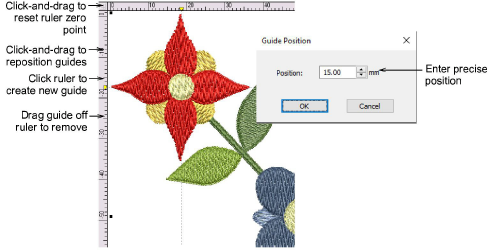
Click View > Show Rulers & Guides to show or hide rulers and guides. Right-click for settings.

Drag the Ruler Zero Point to reset a new ruler zero point.
|
|
Click View > Show Grid to show or hide the grid. Right-click to change the Grid settings. |
|
|
Click View > Show Rulers & Guides to show or hide rulers and guides. Right-click for settings. |
|
|
Drag the Ruler Zero Point to reset a new ruler zero point. |
Use grid lines to help accurately align or size embroidery objects. You can show or hide the grid. The software allows you to turn rulers on and off and create guides for more accurate digitizing. These make it possible to accurately position and size objects and whole designs. The unit of measurement – mm or inches – defaults to the regional settings in the MS Windows® Control Panel. These, however, can be changed from within the software.
Tip You can change the grid spacing, select a reference point and turn Snap to Grid on or off in the Options dialog.