Use General > Read from Card/Machine to read design from the B 990 embroidery machine.

Click View > Show Hoop to show or hide hoop. Right-click for settings.
|
|
Use General > Read from Card/Machine to read design from the B 990 embroidery machine. |
|
|
Click View > Show Hoop to show or hide hoop. Right-click for settings. |
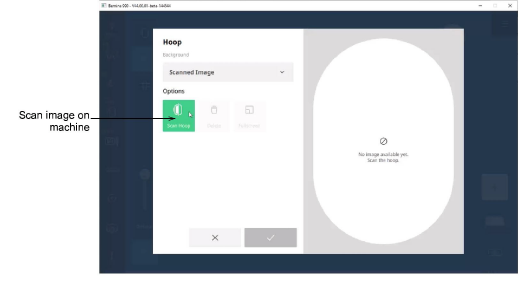
Read scanned hoop images from your machine into Embroidery Canvas. Your embroidery design can then be resized, reshaped or repositioned in relation to the scanned image and sent to machine. These are the main applications:
You embroider a design and then wish to embroider something else and position it accordingly.
You have a fabric with a printed pattern or a project – e.g. T-shirt with a pocket – and you wish to position your design in relation to that fabric pattern or project.
Note: The scanning feature is currently only available with the B 990 machine.
1From the machine console, scan the hoop. The complete hoop embroidery area is included. The machine also saves the current hoop and presser foot details.
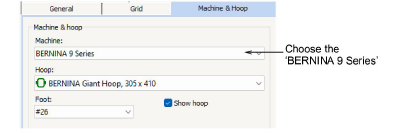
2In the Options > Machine & Hoop dialog, select the ‘BERNINA 9 Series’ if not already selected.
3Click the Read from Card/Machine icon on the General toolbar. Alternatively, select File > Read from Card/Machine.
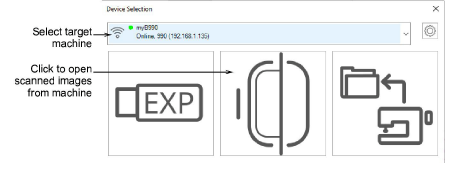
4Select the target machine (B 990) from the droplist or configure it as needed. See Device selection & setup for details.
5Click the Scan Hoop icon and toggle on the Show Hoop icon. The complete image together with hoop and presser foot information is imported to Embroidery Canvas from the machine.
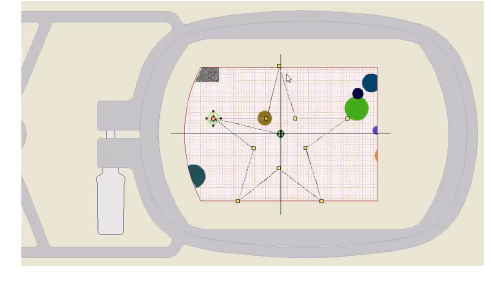
6After the image has been read into Embroidery Canvas, adjust your embroidery design – e.g. resize, reshape or reposition – as necessary and then send to machine.
The scanned image is scaled to fit the embroidery area and is only visible when the hoop is showing.
The image will rotate and move together with the hoop.
The image is saved together with the design in ART90 format.
Selecting a different hoop or presser foot will remove the image.
The Mega-Hoop works as a regular hoop on the B 990 machine.
The Multi-Hooping feature in BERNINA V9 will not work with the scanning feature.